Terminal workspace
Use Terminals to keep shells and coding agents beside Files and Git views. Splitting or expanding a pane preserves running terminal processes.
Find and manage terminals
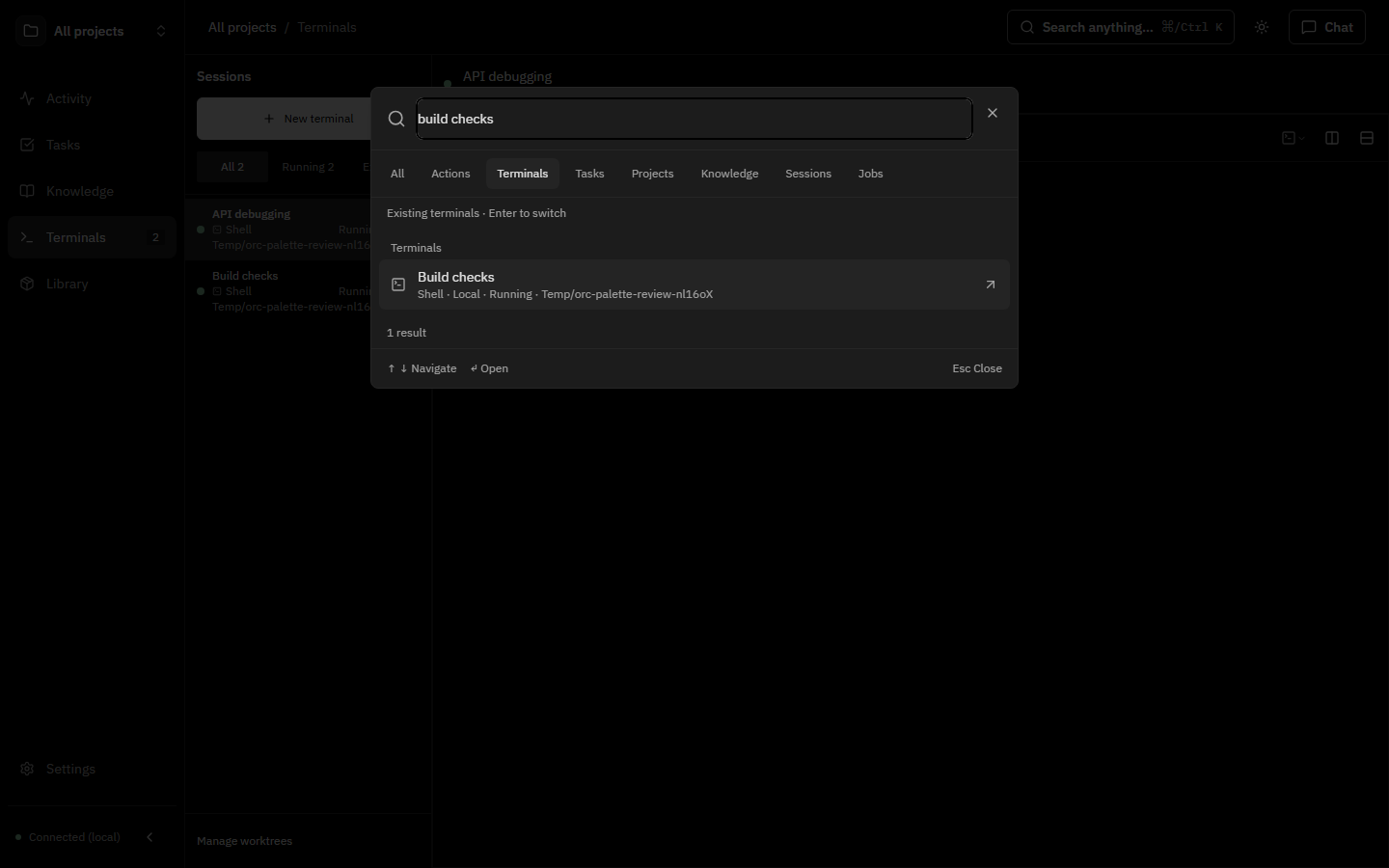
- Press Ctrl+K (Cmd+K on macOS) and choose Terminals, or use the terminal picker icon beside the split controls.
- Search friendly names, full folder paths, agent types or host aliases. An empty terminal search shows recent terminals for this browser session.
- Select a result to open the existing terminal. A terminal already visible in another pane is focused there, rather than mounted twice.
- Use a session's three-dot menu or right-click its name to Rename, Duplicate or Close. Duplicate starts a fresh session of the same type on the same host and in the same folder; it does not copy an agent conversation or create a worktree.
- Expand pane temporarily fills the terminal workspace with one pane. Restore split layout restores the other panes. This does not enter browser fullscreen or stop their processes.
Names survive browser reloads for the lifetime of the running API's in-memory terminal. Closing a pane preserves its terminal; closing the terminal stops it.
Files and Git
Files has open-file tabs, dirty markers and Git change badges. Switching between Files and Git or arranging panes preserves in-page file tabs and editor drafts. Drafts are not durable storage; save before closing the page. Saves detect conflicting disk changes and retain the draft for explicit resolution.
Browser Back and Forward restore Files or Git, including shared links opened on another device. Restored views stay in place when you focus another pane or reload.
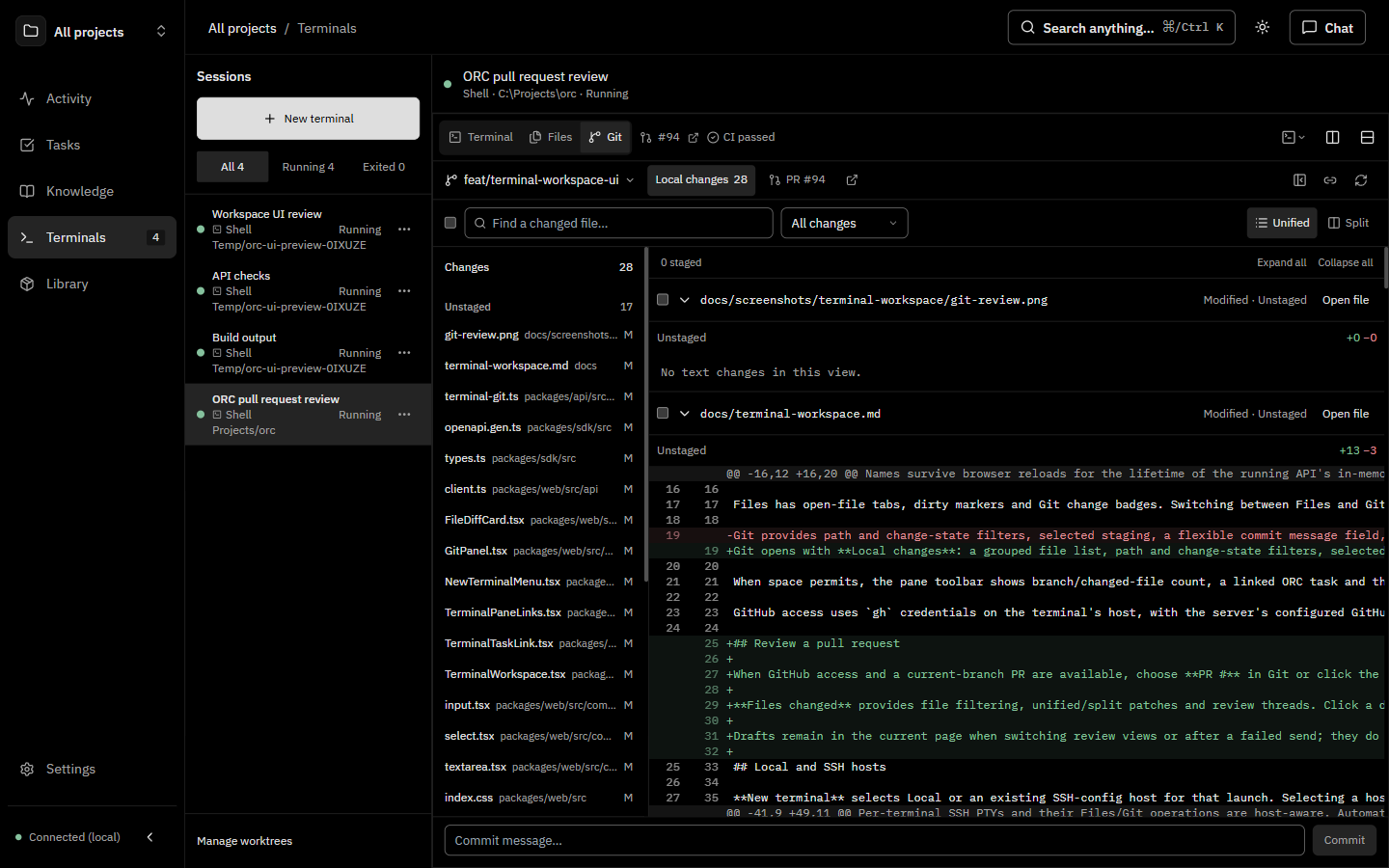
Git opens with Local changes: a grouped file list, path and change-state filters, selected staging, unified or side-by-side diffs, and links into Files. The commit message stays full width at the bottom. Click the branch name to expand branch/worktree controls; use the task-link icon beside the file-sidebar toggle to link an ORC task. New worktree sits beside the worktree selector. The file list collapses into a picker in narrow panes. Opening a worktree preserves the selected terminal host.
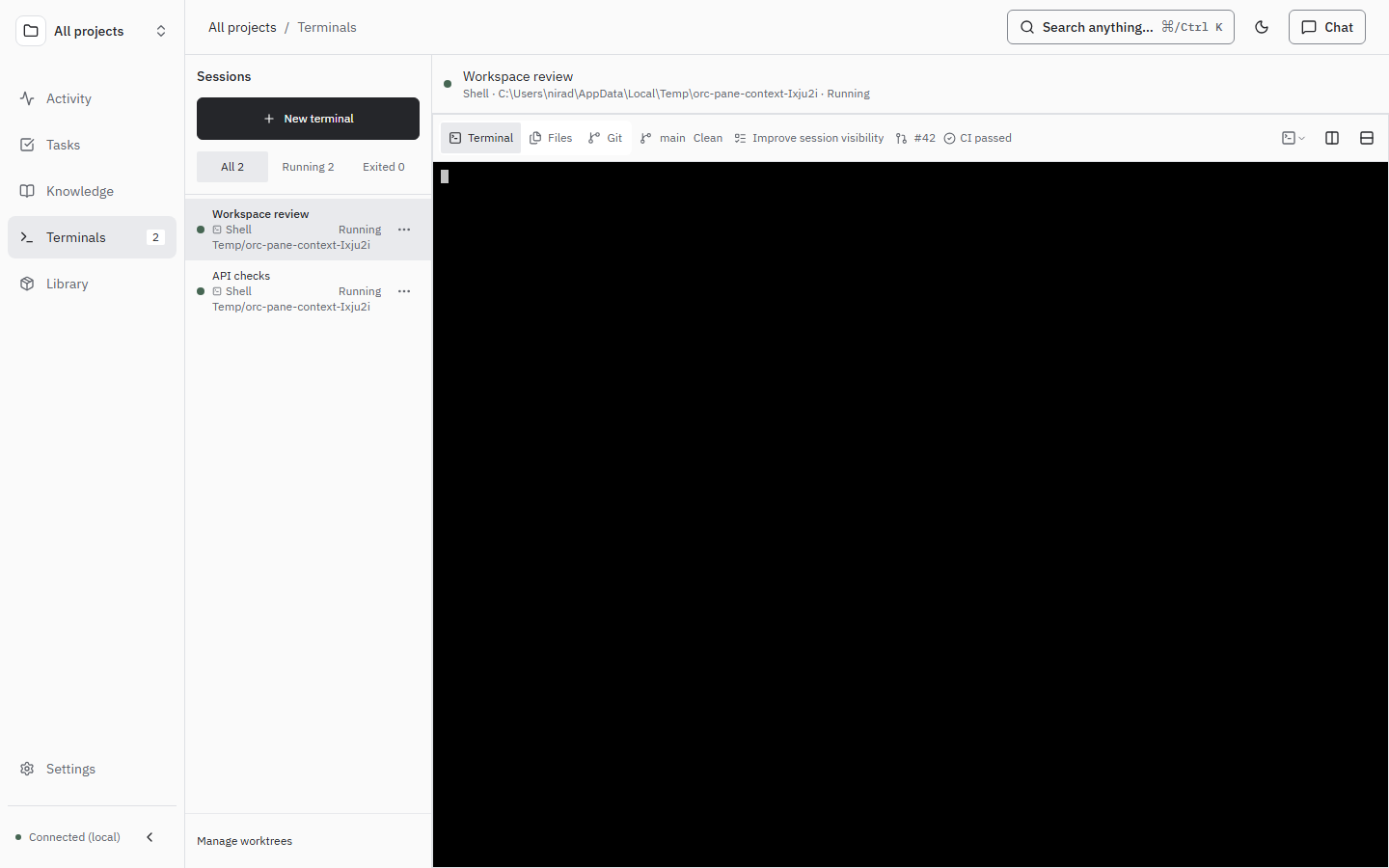
When space permits, the pane toolbar shows branch/changed-file count, a linked ORC task and the current branch's open PR. CI appears beside the PR when GitHub provides its current head-commit checks and statuses. Inaccessible or incomplete CI is hidden; no reported checks is shown separately from passing checks. CI refreshes while the workspace is open. The wider task and PR details disappear in narrow panes.
GitHub access uses gh credentials on the terminal's host, with the server's configured GitHub token as a fallback. A checkout without a GitHub origin remote is reported separately from unavailable authentication.
Review a pull request
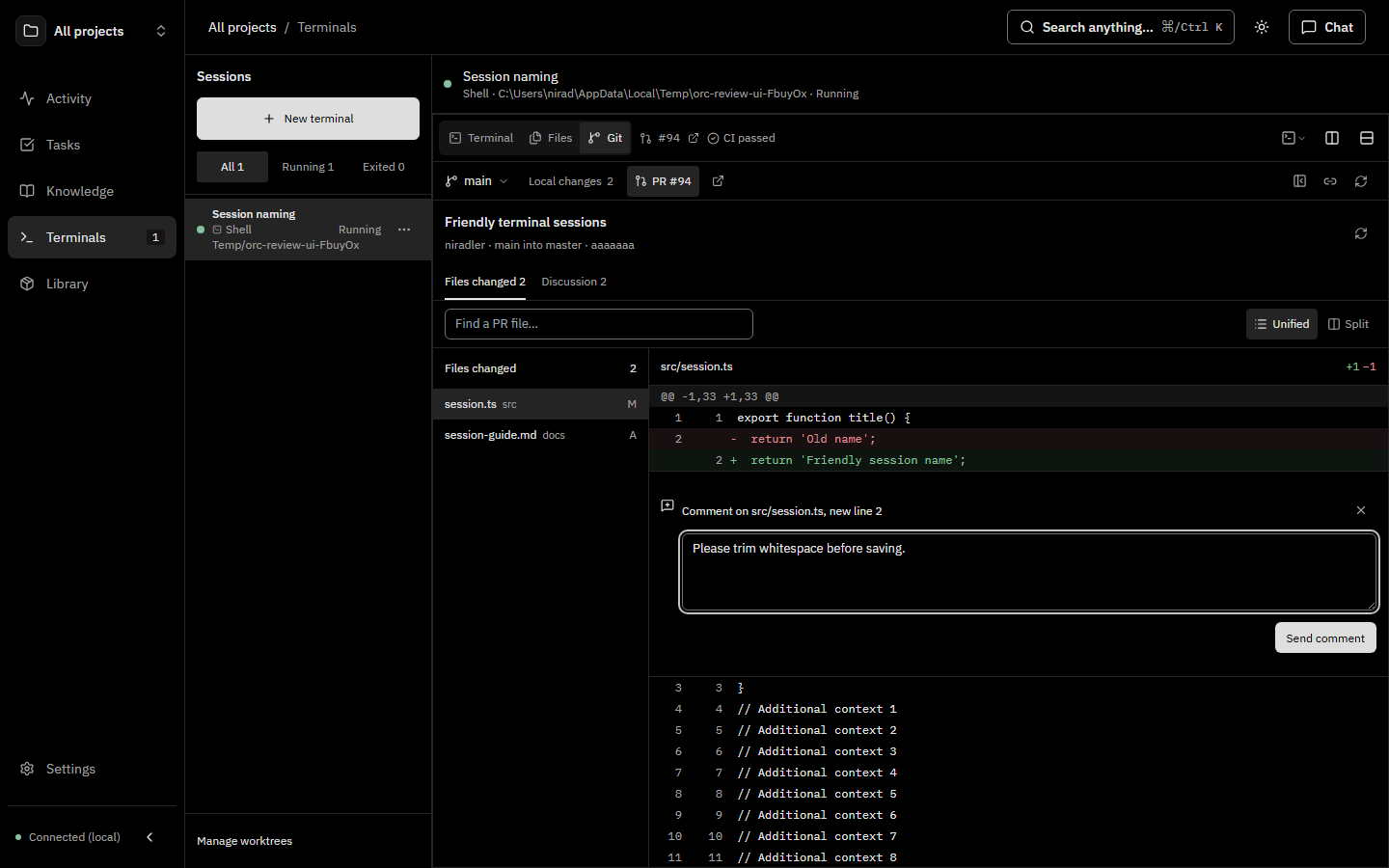
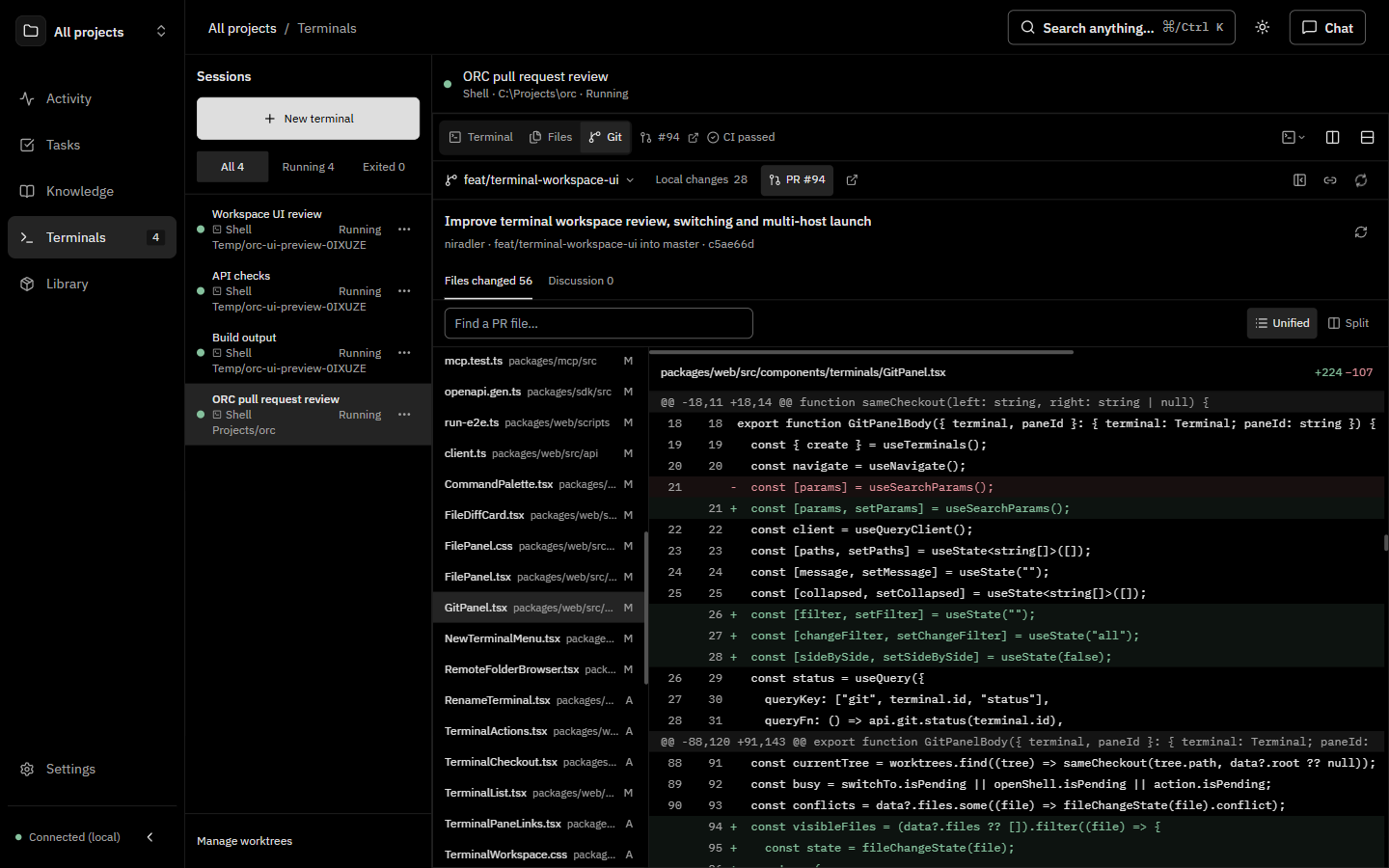
When GitHub access and a current-branch PR are available, choose PR # in Git or click the pane toolbar PR link. The separate external-link icon opens GitHub in your browser. PR review shows committed PR changes separately from dirty local files.
Files changed provides file filtering, unified/split patches and review threads. Scroll continuously through the loaded files, or use the file list/picker to jump to a file. Click a diff line number to open an editor directly beneath that line, or Reply below a thread. Editors stay closed until an explicit action; use the close icon or Escape to dismiss and retain the draft. Discussion shows the description, general comments, review summaries and inline threads; choose Add comment for a general PR comment. Sending requires an explicit Send comment action and uses the authenticated GitHub account. This view does not approve reviews, request changes or merge PRs.
Drafts are kept separately by file, line and side. While a comment is sending, editing and additional sends are disabled until its result arrives. Drafts remain in the current page when switching review views or after a failed send; they do not survive reloading the page. A changed PR head requires refreshing and explicitly selecting a line again before sending an inline draft; if the old line disappears, the draft remains available until you select a current line. After an uncertain network result, check GitHub before retrying. Closed PRs are read-only. Large/partial or binary changes link back to GitHub for complete inspection. Descriptions and comments display as plain text without loading embedded remote images.
Dev server and preview
A project can save a Dev script with its workspace environment. Open a project terminal's three-dot menu and choose Start dev server. The script runs in a new shell in the same folder and host; the first http(s) URL it prints becomes the preview link. Preview appears in the pane toolbar and in the terminal's menu. The link is cleared when that dev terminal exits.
Terminals that belong to a project receive its environment variables, and its port block once the project has a setup script, dev script or a custom port range. A session's inspector shows the workspace ports, setup state and preview; a task's Git links show the same workspace status with its setup output when the setup script failed. Setup runs once per managed worktree, before the first agent starts there; a failure is reported but does not block the agent.
Local and SSH hosts
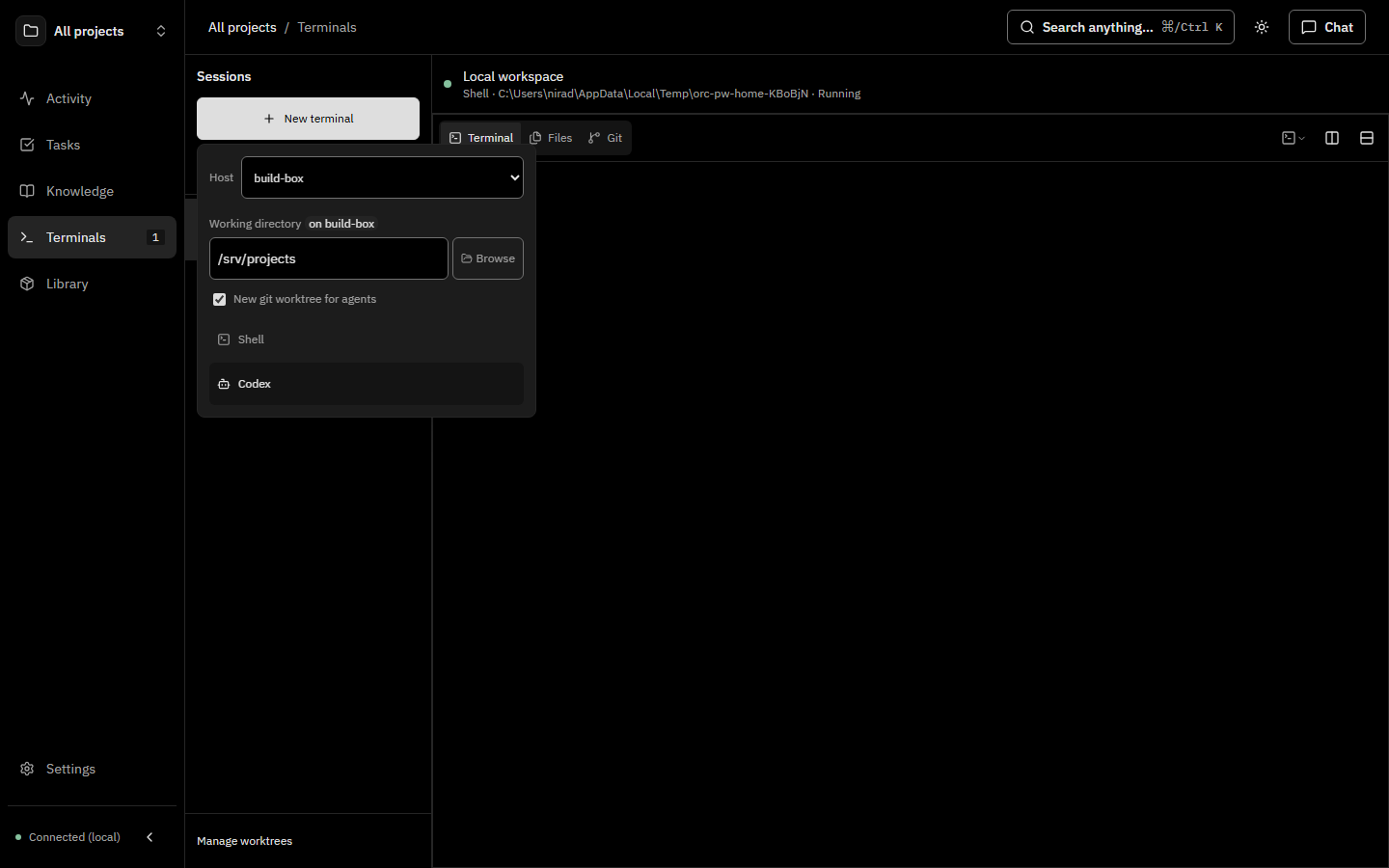
New terminal selects Local or an existing SSH-config host for that launch. The launcher offers a shell plus enabled named providers from Settings → Agents → Providers whose native CLI is installed on that host (or has a configured local executable). Provider launches receive their environment overrides and their default model. The sliders button beside an agent picks a model, effort and mode for that launch, mapped to the CLI's own flags:
| Agent | Model | Effort | Mode |
|---|---|---|---|
| Claude Code | --model | --effort | --permission-mode with plan, acceptEdits, auto or bypassPermissions |
| Codex | --model | -c model_reasoning_effort=… | --sandbox and --ask-for-approval: Read only, Auto, Auto-review (adds -c approvals_reviewer="auto_review"), Full access |
| OpenCode | --model | none | Plan: --agent plan |
| Cursor | --model | none | Plan: --mode plan; Full access: --force |
Other agents launch without these options. Saved chat profiles appear in the launcher and start their agent with the profile's choices in one click; a choice the CLI lacks (for example Codex Plan or OpenCode effort) is left out. Chat JSON options apply to the chat adapter; package setups retain their own launch configuration. A plain shell does not receive a coding provider's environment. Selecting a host scopes launcher availability, folder browsing and worktrees to that host. The global SSH setting is unchanged. Searching a supported SSH host in the terminal palette offers New terminal on that host, which opens the launcher without executing anything automatically.
Remote folder choices are kept separately from Local during the launch menu's lifetime. The new-worktree checkbox preference is remembered. Existing terminals retain their host, and resumed agent sessions retain their saved execution host. Resuming a session in a terminal from the session list reattaches the running terminal when one exists; Fork in terminal always opens a new terminal on the same host and folder and leaves the source conversation and any resume terminal unchanged.
Supported execution hosts
| API platform | Local PTYs | SSH terminals |
|---|---|---|
| Windows with Bun 1.4.2+ | Supported through ConPTY | One SSH connection per terminal plus a per-host callback tunnel (no OpenSSH multiplexing on Windows); trusted host keys and noninteractive key authentication |
| Linux/macOS with supported Bun PTYs | Supported | Requires OpenSSH multiplexing, trusted host keys and noninteractive key authentication |
The SSH transport needs a callback to the ORC API. Automatic reverse forwarding requires the SSH key/server to permit forwarding. A restricted key is reported as an error; the application does not change SSH permissions or trust settings. An explicitly configured callback port can use an already reachable API endpoint.
Per-terminal SSH PTYs and their Files/Git operations are host-aware. Automatic agent-history discovery still follows the globally configured execution host; this change does not add discovery across every terminal host.
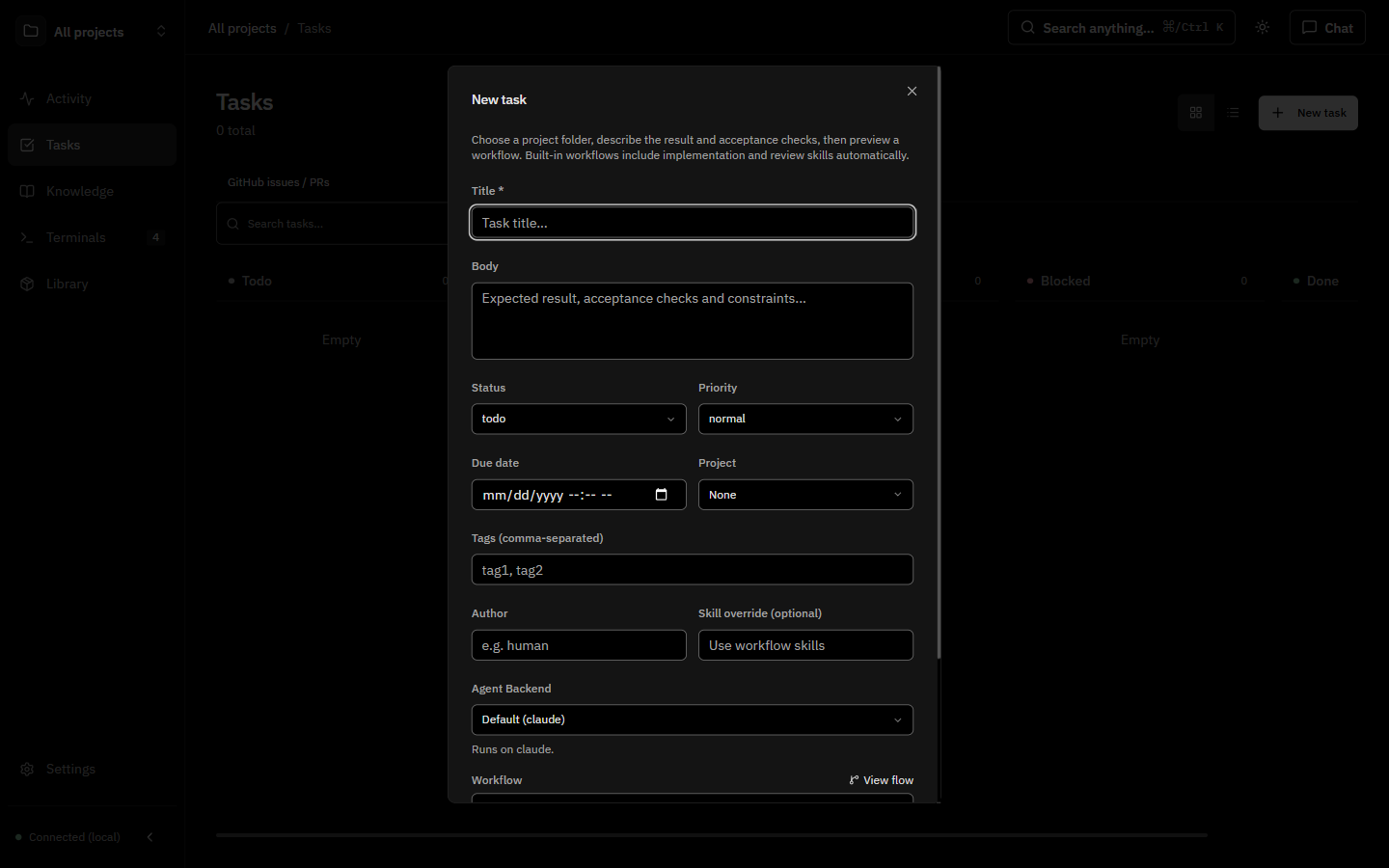
Shared Input, Select and Textarea components use compact desktop controls with the same larger touch sizes on phones. Page-specific size overrides are preserved.
UI examples
The Local changes and PR review screenshots below show the real source checkout and a read-only fetch of PR #94. The shared-controls screenshot shows an unsaved task form in the isolated preview. The mobile PR and light Git screenshots below use explicit review fixtures. The other examples use disposable test checkouts: host names, linked task, PR and CI there are explicit fixtures, not evidence of live remote execution.
Mobile PR review fixture · Light Git fixture