
Notifications
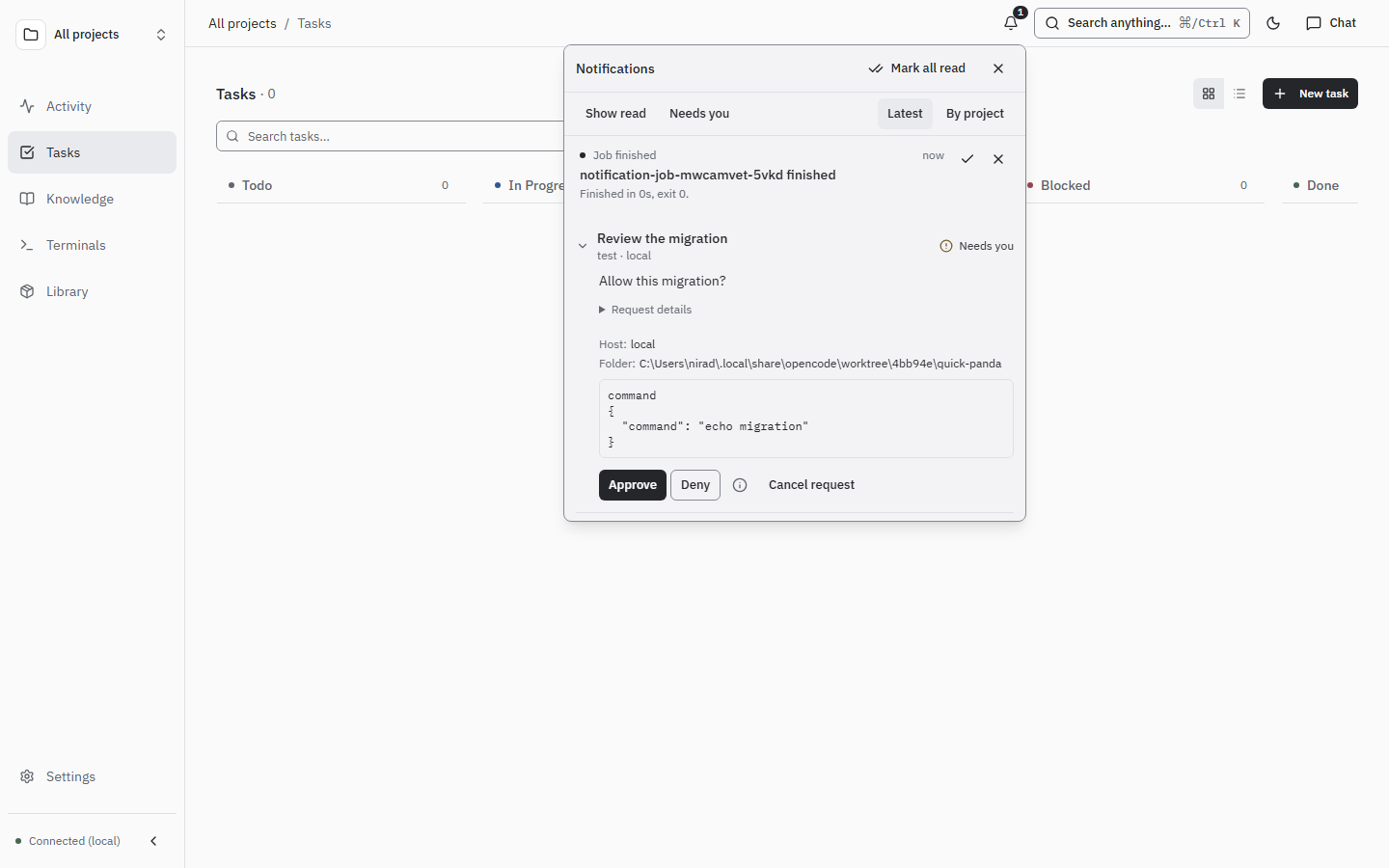
The bell in the workspace header opens your notification inbox: an anchored menu on desktop and a full page at /notifications on phones, including while the chat is open. New arrivals jump the bell icon a few times and show an unread indicator without opening it. Use Alt+N or Open notifications in the command palette to open it; on phones both navigate to the page, and its back bar returns to where you were.
Notifications cover human questions, approvals and commands, agent questions and outcomes, and job outcomes. Open an item to review the request or visit its source. Every alert names where it came from: the owning project, or the session's folder when no project owns it. The label appears in inbox rows, desktop notifications and browser push, while By project grouping and per-project muting keep working as before. Labels follow the source: assigning a session to a project or renaming that project updates the notifications still in the inbox. Request forms stay collapsed until opened; drafts survive closing and reopening the menu. Read and dismissed state is stored on the server and shared by clients. Dismissal does not approve, answer, cancel or delete a source request.
The inbox shows unread notifications by default. Opening an item or choosing Mark read clears it from the inbox. Clicking a native desktop notification opens its destination and marks that item read. Show read includes read history; use Mark unread to return an item to the inbox, or Mark all read to clear it. An opened human request stays available while you answer it.
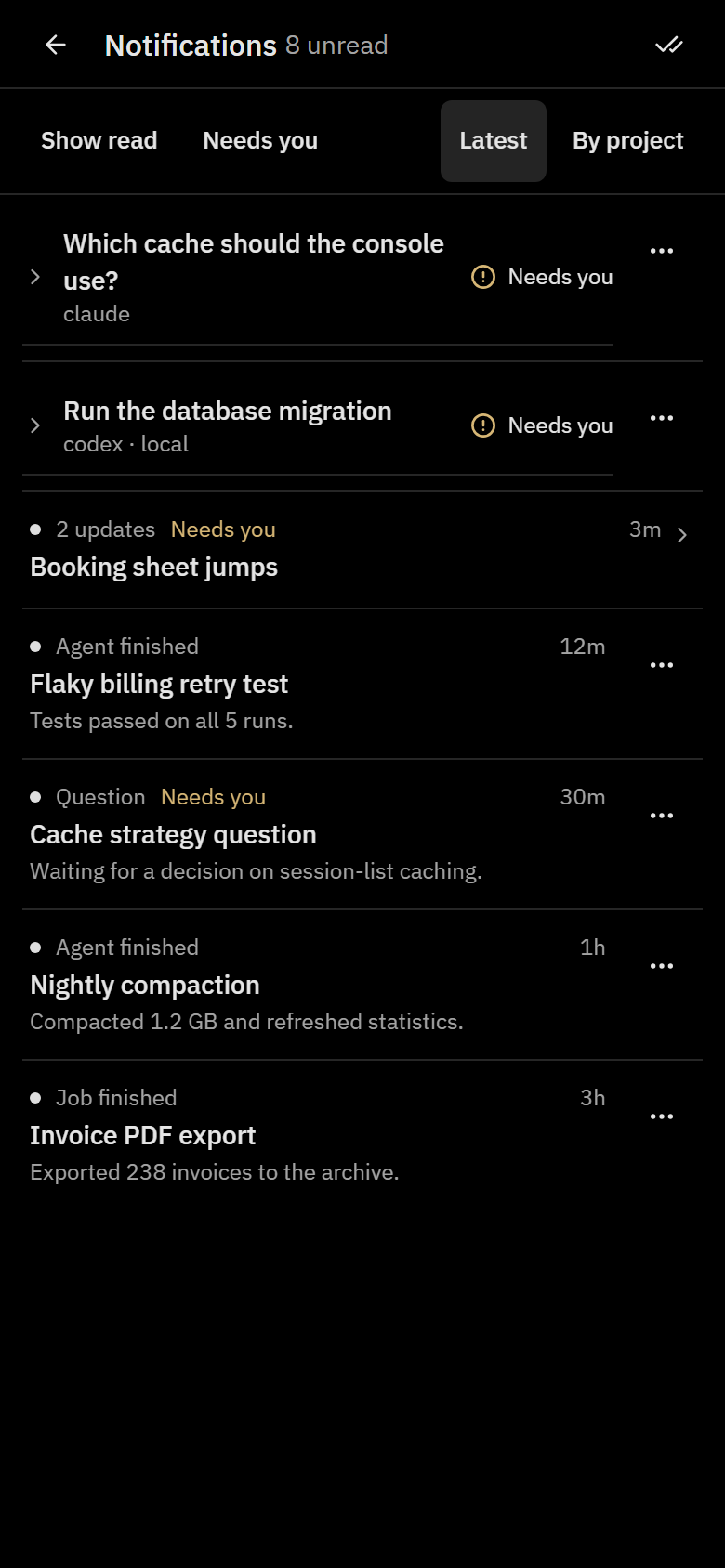
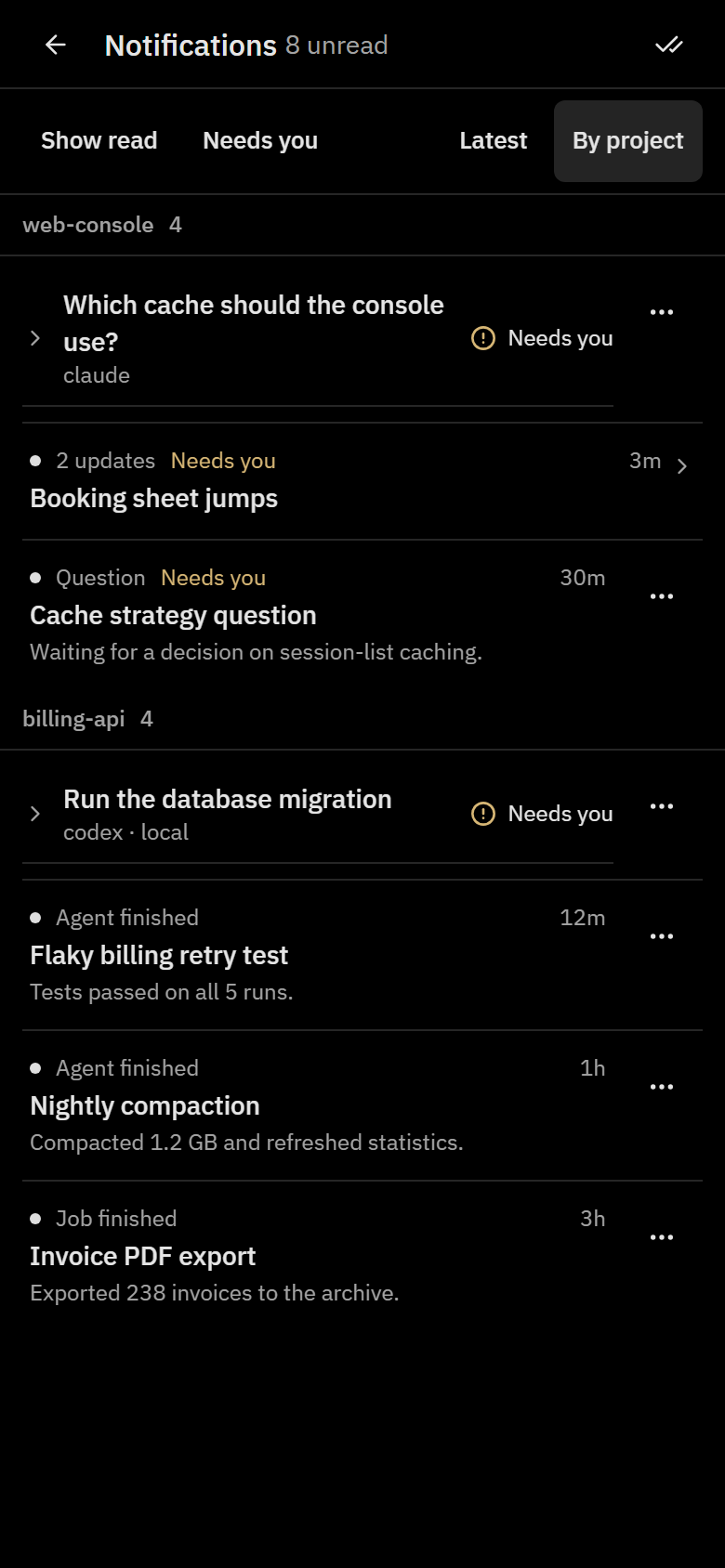
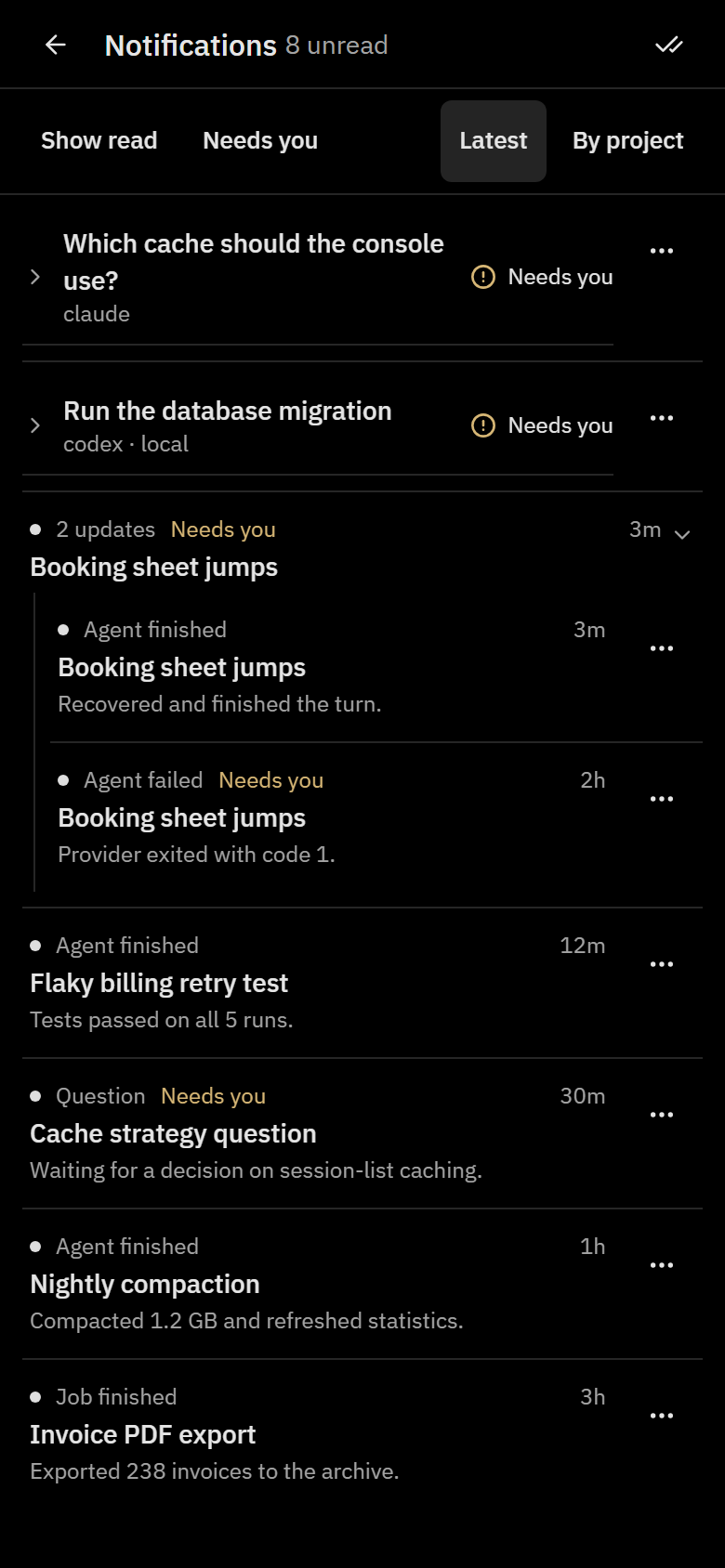
Desktop and phone share one inbox logic. Updates from the same session or request collapse into a quiet summary row with a count and the most urgent state; expand it to see each update. Latest lists groups newest first; By project adds a section per project with sticky headers and counts, and the choice persists across reloads. When the workspace header has a specific project selected, the inbox and its unread count follow that project, including items recorded before the session's folder was assigned, and Mark all read only clears the items in that project. Choose All projects to see every project again. Needs you narrows the inbox to items that require an action. Human requests keep their review card in the row, so questions, approvals and commands are answered inline without leaving the inbox; drafts survive closing and reopening. Phone rows keep mark-read and dismiss in one named row menu with 44px targets; desktop rows keep direct icons.
Each session keeps only its latest Agent finished notification. A newer finish physically replaces older completion notifications, including read and dismissed ones. Existing duplicates are cleaned automatically in bounded batches; lists and unread counts show only the latest even while cleanup is catching up. Saved chat views and the native session share that latest completion using the agent backend, execution host and native session ID. The alert opens where the latest turn ran; opening another read-only view creates no new completion alert. Matching native IDs on different hosts or agent backends stay separate. When a session continues — a new chat turn starts or an observed session runs again — every notification about that session is automatically dismissed: the completion, older failures, questions and approvals no longer need you. Notifications exist to find the sessions that actually need you, so stale ones never pile up. A completion for a chat or session that is already open and focused is marked read and dismissed as soon as it arrives, so the bell stays quiet while you watch it. This applies to workspace chats and observed agent sessions. Show read includes the retained latest completion, rather than a history of every turn.
Job delivery follows notify_on: never creates no alert, failure reports failed runs, and always also reports successful runs. Notification types are extensible strings; unknown types use the same common menu and source link.
Expiry and audit history
Every notification has an expiry date. Settings → Notifications → Automatic cleanup sets notification retention (default 30 days) and audit retention (default 90 days), each from 1 to 3650 days. These are server-wide preferences. All notifications expire, including unresolved ones. The underlying request has its own timeout and lifecycle; notification expiry never resolves it.
Expired entries disappear from reads immediately. The API server cleans stored rows at startup and every minute in bounded batches of 1000. A backlog drains over successive passes. Lowering retention also hides older entries immediately. SQLite reuses freed pages; cleanup does not guarantee a smaller database file.
Activity → Audit retains notification creation, resolution, read, dismissal, expiry and supersession events independently, including the actual notification title and message. Audit events expire under their own retention period even if the alert has already been cleaned up. New lifecycle events also cover human-request status changes, job starts/outcomes and task creation/status transitions. They exclude unrelated source prompts, command payloads, responses and output. Repeated polling and unchanged state do not create audit events. Existing audit snapshots keep their original content until their retention period ends.
Sound, push and channels
New notifications jump the bell icon a few times; Needs-you alerts can chime and Done alerts are silent. Settings → Notifications → Sound controls browser-local sound and project muting. Browser/PWA push remains separately opt-in for background human requests, chat replies and job results; see Installation. A device receives job pushes only after Job results is enabled there. Existing devices subscribed to every topic receive this new topic on upgrade; you can turn it off independently, and that choice survives restarts. Enabling it does not replay older runs. Each alert follows notify_on and includes the job name, exit status, duration and a link to the run. failure sends failed runs, always also sends successful runs, and never sends nothing.
Forward notifications to Telegram or Slack
In Settings → Connections → Channels → Notification forwarding, enter the ORC origin reachable from your channel client (for example https://orc.example.com), enable forwarding and save. The URL must have no credentials, path, query or fragment. Links open the existing authenticated ORC app; forwarding supplies no login or approval authority. The forwarding switch and URL stay disabled while saved settings load or save. If loading fails, the form shows the error and stays disabled.
Edit a connection, open Recipients, edit a recipient and select Forward notifications. Apply the recipient and save the connection. The connection and Allow outbound must be enabled. Inbound messaging and sender IDs are unnecessary for these outbound-only alerts. Existing recipient project restrictions apply; restricted recipients never receive unassigned or other-project notifications.
Notification filters and preview selects types, categories (human, agent, job), severity (needs-you, done) and outcome (waiting, success, failure). Values within a group are alternatives; selected groups must all match. Empty groups match all known values. Unknown types are excluded unless Include new or unknown types is selected; they have no known outcome and cannot match an outcome filter. Preview filters evaluates the draft without sending a message.
Forwarding sends fixed, escaped summaries and source links, prefixed with the project name when the source belongs to a project. A folder name is never forwarded, so an unassigned source keeps the plain summary. It excludes titles, question text, command arguments, tool payloads, logs and credentials. Job events honor notify_on; human requests also retain their producer's notify provider selection. Selecting forwarding replaces the recipient's legacy Interactive questions and approvals delivery with safe links, avoiding duplicate request messages. Interactive delivery retains its own inbound/sender permissions.
Clear a recipient's Forward notifications, or pause globally, without disconnecting the channel or changing in-app alerts. Activation or changes to a recipient's filters, destination or project restrictions start with new events; history and events produced during a global pause are not replayed. An in-flight send can finish after a pause. Saved configuration survives restart.
Inbound rules
Settings → Connections → Channels → Inbound routing turns an incoming message into an agent turn. Rules run in saved order; the first enabled rule whose condition matches wins. Conditions nest all (AND), any (OR) and not, up to 5 levels and 100 condition nodes. Fields: sender, chat, thread, text, command, is_direct, is_mention, is_followup (the message continues a thread an agent already answered on this connection), kind. Operators: is, in, contains, contains_any (case-insensitive keyword list), starts_with — regex is deliberately unsupported (inbound text is untrusted). A time condition restricts a rule to a window (days 0=Sun..6=Sat, from, to, tz, overnight ranges allowed; wrap it in not for "outside hours"). An optional Otherwise rule (condition: {"always": true}) must be last if present.
A rule's action is ignore, agent, or job. An agent action names the agent and project, and an optional model and profile — an agent profile whose instructions, tool allowlist and model become that rule's persona. session picks continue (one rolling conversation per chat/thread/sender, the default), thread (one session per thread; a top-level Slack message starts a new thread and the reply lands in it) or message (a fresh session every message). permissions picks ask (approvals come to you), read_only (only Read, Grep, Glob, LS, WebFetch and WebSearch; ORC MCP is off; backends that cannot enforce a tool allowlist refuse to run), accept_edits or auto (no prompts); senders matched only through * never get more than read_only, never get ORC MCP, and cannot trigger a job whose agent runs with accept_edits or auto. options carries the same per-agent launch options as the chat composer, such as effort; options that approve more than permissions (Claude bypassPermissions or acceptEdits, ACPX --approve-all or --approve-reads) are rejected. A job action runs that job with the message text on stdin and ORC_CHANNEL_CONNECTION, ORC_CHANNEL_PROVIDER, ORC_CHANNEL_CHAT, ORC_CHANNEL_THREAD, ORC_CHANNEL_SENDER, ORC_CHANNEL_SENDER_NAME and ORC_CHANNEL_ROUTE in its environment; the job's stdout becomes the reply.
Worked example: any DM to the bot gets a read-only assistant persona; a mention in #ops during work hours that names a deploy or rollback runs Codex in the ops project with one session per thread; everything else is ignored.
[
  {
    "id": "dm-assistant",
    "name": "DMs to the bot",
    "enabled": true,
    "condition": { "field": "is_direct", "op": "is", "value": true },
    "action": {
      "type": "agent",
      "agent": "claude",
      "project_id": "PROJECT_ID",
      "profile": "read-only-assistant",
      "session": "continue",
      "permissions": "read_only"
    }
  },
  {
    "id": "ops-deploys",
    "name": "Ops deploy mentions during work hours",
    "enabled": true,
    "condition": {
      "all": [
        { "field": "is_mention", "op": "is", "value": true },
        { "field": "chat", "op": "is", "value": "C0OPS" },
        { "field": "text", "op": "contains_any", "value": ["deploy", "rollback"] },
        { "time": { "days": [1, 2, 3, 4, 5], "from": "09:00", "to": "18:00", "tz": "Asia/Jerusalem" } }
      ]
    },
    "action": { "type": "agent", "agent": "codex", "project_id": "OPS_PROJECT_ID", "session": "thread" }
  },
  { "id": "otherwise", "name": "Otherwise", "enabled": true, "condition": { "always": true }, "action": { "type": "ignore" } }
]
Rules only see messages from an inbound destination. To let anyone DM the bot, add a destination with Any chat and Any sender (chat_id: "*", user_ids: ["*"]). A sender matched only through * gets replies only: no chat controls, no /project, /agent or /model, and approvals or questions from their turns go to ORC Notifications, never to them. A * chat cannot carry notifications, Attention or a fixed thread, a * sender cannot carry Attention, and API or channel_send messages cannot target a * chat. Pair such a destination with permissions: "read_only" and a profile with a limited tool allowlist.
Preview which rule a message would hit without invoking an agent: orc channels test --connection <id> --sender <id> --chat <id> --text "..." [--thread <id>] [--direct] [--mention] [--followup], or POST /api/channels/{id}/route-test.
Recent deliveries shows status, attempt count, safe errors and a channel receipt ID through the API. Stable notification/destination IDs prevent replay of completed deliveries after restart. Definite provider rate limits retry at most four times with bounded exponential backoff (4, 8, 16 seconds). Ambiguous network/timeouts and interrupted sends are marked unknown for inspection, rather than automatically resent. Permanent errors are failed. Expired events are never newly dispatched; errors stay in delivery history/logs and do not create recursive notifications.
The authenticated API exposes GET/PUT /api/channels/notification-policy, POST /api/channels/notification-preview and GET /api/channels/notification-deliveries?limit=50 (maximum 100). The preview body is {filter, project_ids, event: {type, level, project_id}}. These use the existing channel_send transport, destinations and secure credentials.
Links to /activity?notifications=open (optionally with &request=<id>) open the notification menu on desktop and redirect to the phone page, which expands the linked request. /notifications is shareable at every viewport size. See Human requests for source request actions and timeouts, and API reference for notification and audit routes.
Slack user session
The slack-user provider connects ORC to Slack through your own user session instead of a Slack app, for workspaces where installing an app is not possible. It uses earshot to hold the same realtime socket your Slack web client uses. Replies post as you, in the same thread.
| Provider | Needs | Posts as |
|---|---|---|
slack | Slack app: bot token + Socket Mode app token | the bot |
slack-user | your session: xoxc token + d cookie | you |
Setup in Settings → Connections → Channels: add a Slack (user session) connection, then press Fill from local Slack — ORC reads the session from the installed Slack desktop app (macOS and Windows). To paste manually instead:
- User token (
xoxc) — in the Slack web client (app.slack.com), DevTools → Console →TS.boot_data.api_token. - Session cookie (
d) — DevTools → Application → Cookies → thedcookie value (startsxoxd-). The info icon beside the setup summary repeats these steps.
The cookie is a full-access session secret — treat it like a password. Stored values are encrypted; env:ORC_SLACK_USER_TOKEN and env:ORC_SLACK_USER_COOKIE keep them out of the database entirely. Verify identity, then Pair my Slack: send the pairing text in a direct message to yourself (the “you” conversation) and confirm the recipient.
Inbound rules work exactly as for the bot. There is no bot user to mention, so the trigger is a configurable keyword: config.triggers (default ["@orc"], 1–20 keywords). Messages starting with a trigger (or mentioning your own Slack user) are marked is_mention, and the text is kept intact for keyword rules. A typical route — one session per thread, replies in-thread:
{
  "id": "orc-trigger",
  "name": "@orc mentions",
  "enabled": true,
  "condition": { "field": "is_mention", "op": "is", "value": true },
  "action": { "type": "agent", "agent": "claude", "project_id": "PROJECT_ID", "session": "thread" }
}
Type a trigger keyword followed by your message (default @orc <message>) in any channel or thread you are a member of; the reply lands in the same thread as you, and follow-ups in that thread resume the same session. A new thread starts a new session. text starts_with "@orc" and keyword rules (contains_any) work too, so different keywords can route to different agents or projects.
Differences from the bot provider:
- No button interactions. A user session has no app to receive clicks, so chat controls and approvals render as typeable commands (
/status,/attention <id> approve, …) instead of buttons. - No file attachments. Text messages only.
- Reconnect gap. Messages sent while the socket reconnects are not replayed; earshot is push-only.
- Session expiry. When Slack rejects the session, the connection shows
session_expired. Log in to Slack again, paste a fresh token and cookie, and save the connection to reconnect. - Unofficial transport. This rides Slack's internal client transport and can break if Slack changes it; it is outside Slack's API terms of use. Use the bot provider where an app is allowed.
Advanced: the connection's provider configuration accepts {"transport": "auto" | "rtm" | "gateway"} (default auto) to force earshot's socket transport when rtm.connect is blocked on your workspace, and {"triggers": ["@orc", "jarvis"]} to set the mention keywords.